
How to Import Orders from Zetpy to Xero: A Complete Guide for E-Commerce Accounting
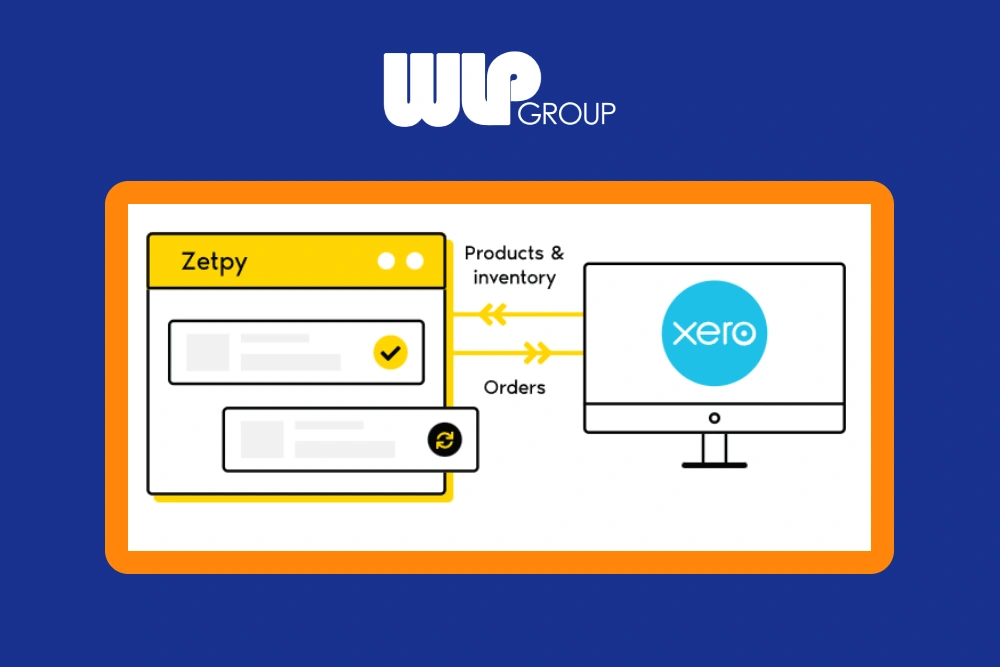
Efficient bookkeeping is a must for growing e-commerce businesses. If you use Zetpy to manage online sales from marketplaces like Shopify, Lazada, Shopee or WooCommerce, you can simplify your accounting by importing those sales orders directly into Xero — a powerful cloud accounting platform. By automating this process, you save time, reduce errors, and improve financial visibility.
(Need expert help with your Xero setup or accounting processes? Find WLP for professional support and guidance tailored to your business needs.)
Why Sync Zetpy Orders to Xero?
Manual data entry between systems is tedious and prone to mistakes. Zetpy’s integration with Xero automates this by turning your marketplace orders into Xero invoices, ensuring:
- Orders across all channels are recorded in your accounts.
- Shipping fees, discounts, and platform fees are accurately captured.
- Accounting data is centralised for reporting and tax purposes.
Before You Start: Prerequisites
To successfully import orders from Zetpy to Xero:
- SKUs must be consistent: Ensure the product SKU codes in Zetpy match those in Xero.
- Products must exist in Xero: Products should be created in Xero and then imported into the Zetpy Xero Plugin before orders can sync.
Step-by-Step Process to Import Orders
- Enable Order Sync and Select Status
- In Zetpy, open your Xero plugin and go to Edit Accounts > Settings.
- Turn on the statuses of orders you want to appear in the import list (e.g., Completed, Shipped).
- Return to the Xero plugin and click Select Orders to view eligible orders.
Note: Only orders with statuses you’ve enabled will be available for syncing.
- Configure Export Options
Under export settings, adjust how information flows into Xero:
- Invoice Number Setup: You can choose to use the marketplace order reference as the invoice number, or let Xero generate its own numbering.
- Tax, Shipping & Fees: Map shipping costs, marketplace vouchers, seller vouchers, and admin fees correctly to keep your financials accurate.
- Income Sync Choices: Turning on “Order Income” means only completed orders will be synced. Leaving it off lets you select orders in any status.
- Map Account Codes and Customers
- Account Codes: Use the Xero account codes for revenue, shipping, and other charges. This ensures your bookkeeping reflects revenue and costs in the right places.
- Customers: Decide whether to import orders under marketplace customers or map them to specific customer records in Xero.
- Sync the Orders
Once everything is configured:
- Go to the Add Orders section in the Zetpy Xero plugin.
- Search and select one or more orders for import.
- Click Sync Orders — or let auto-sync handle it if enabled.
Zetpy will create corresponding invoices in Xero with complete order details.
Tips for Smooth Syncing
- Auto Sync Option: Enable this if you want new orders to flow into Xero without manual steps.
- Consistent Data: Keep SKUs, taxes, and customer names matching between systems to avoid sync errors.
- Review Mapping: Double-check account codes and customer mapping to keep financials accurate.
Final Thoughts
Importing orders from Zetpy to Xero streamlines your financial workflow, eliminating repetitive entry and helping you focus on business growth. Whether you’re reconciling hundreds of daily sales or preparing for tax season, this integration gives your accounting team the time and accuracy they need.
If you’d like expert assistance setting it up or optimising your accounting processes, find WLP for personalised support that ensures your systems work seamlessly together.